
From your WordPress Dashboard, navigate to Legal Pages > Settings > Compliances.
1. Compliance #
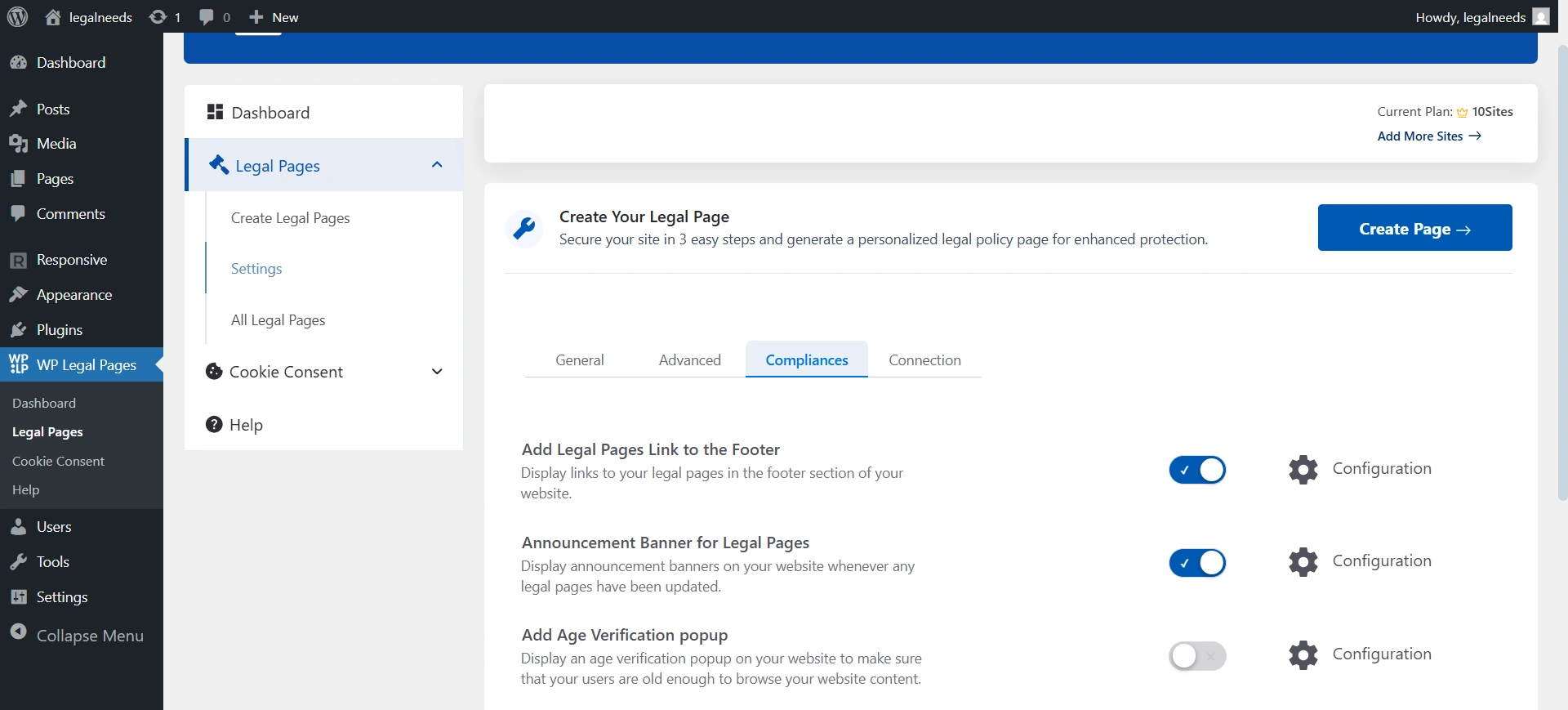
1. Add Legal Pages Link to Footer
What it does: Automatically displays links to all your active legal pages (like Privacy Policy, Terms of Use, Cookie Policy, etc.) in the footer of your website.
Why it matters: Makes it easy for visitors to find your compliance documents without disrupting the user experience. Many privacy regulations require policies to be easily accessible.
How to use: Toggle this switch ON to enable. Click Configuration to customize how the links are shown.
To know details on how to use it, refer to the guide.
2. Announcement Banners for Legal Pages
What it does: Shows a notification banner across your website whenever a legal page is updated.
Why it matters: Keeps your visitors informed about important changes to policies like Privacy or Terms of Use, which is especially important for maintaining transparency and compliance with GDPR and similar regulations.
How to use: Toggle ON to activate. Use the Configuration option to set banner text, styling, and placement.
Want to know more details about it? Refer to this guide.
3. Add Age Verification pop-up
What it does: Displays an age verification popup to ensure visitors meet minimum age requirements before accessing your site’s content.
Why it matters: Essential for websites with content restricted by age (e.g., alcohol, gambling, adult content). Helps you comply with regional laws and protect your business.
How to use: Available with the Pro plan. Enable the toggle and use Configuration to set age limits, messaging, and design.
Learn how to add an age verification pop-up to your site.
4. Saving Your Changes
After adjusting any settings, click Save Changes at the bottom to apply them to your site.
2. Advanced #
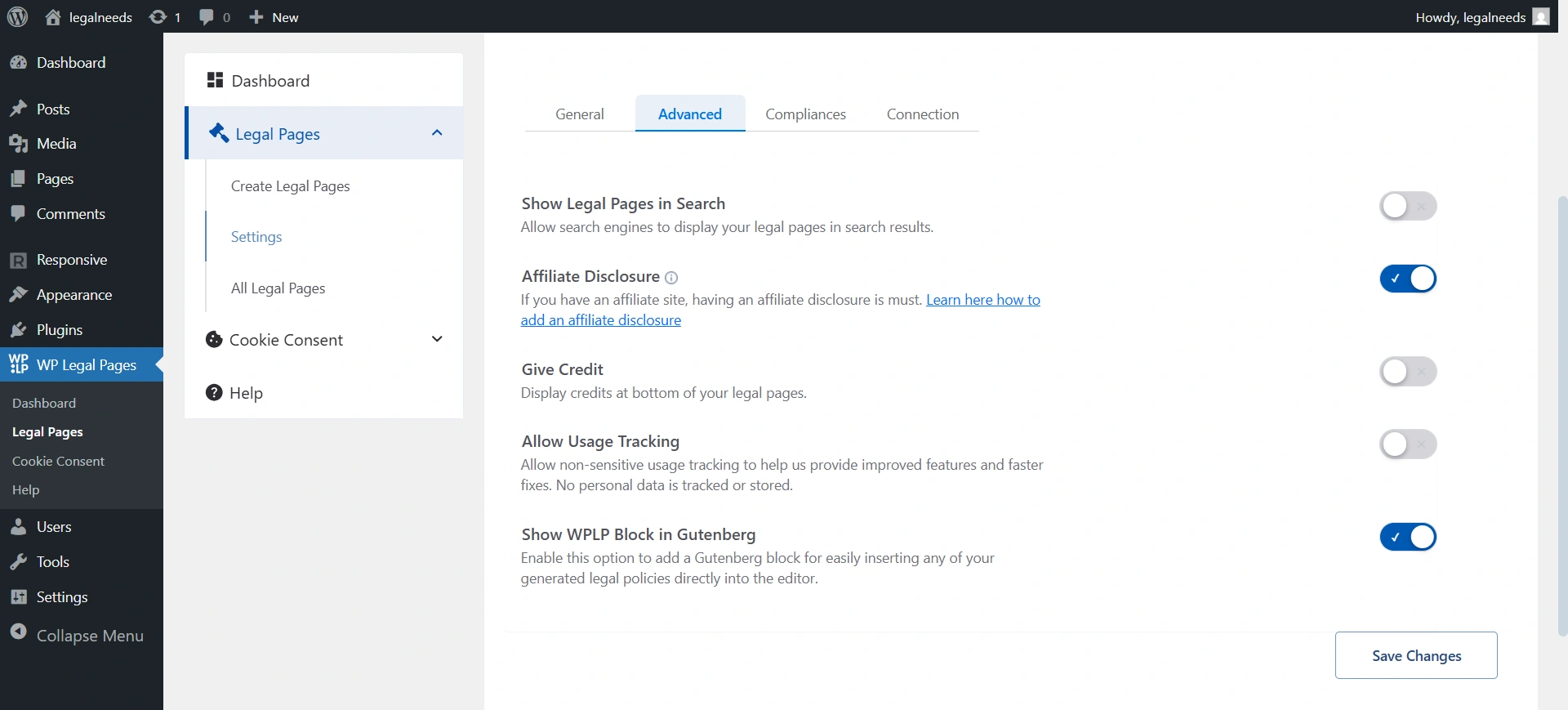
1. Show Legal Pages in Search
What it does: Allows your legal pages (Privacy Policy, Terms of Use, etc.) to be indexed and displayed in search engine results.
Why it matters: Makes your compliance documents more discoverable to users, regulators, and search engines.
How to use: Turn the toggle ON to let search engines crawl these pages, OFF to hide them from indexing.
2. Affiliate Disclosure
What it does: Automatically inserts an affiliate disclosure below your blog posts.
Why it matters: If your site earns through affiliate links, many laws (like FTC guidelines) require disclosure. This option ensures you stay compliant.
How to use: Turn the toggle ON to activate the disclosure sitewide.
Want to know how to enable and show Affiliate Disclosure on your blog post? Refer to this guide.
3. Give Credit
What it does: Adds a small credit note at the bottom of your legal pages.
Why it matters: Acknowledges the use of the WPLP Compliance Platform while also promoting transparency.
How to use: Turn the toggle ON if you’d like credits to appear.
4. Allow Usage Tracking
What it does: Enables anonymous, non-sensitive usage data tracking.
Why it matters: Helps WPLP improve features, fix issues faster, and enhance user experience. No personal data is tracked or stored.
How to use: Turn the toggle ON if you’d like to support the improvement of the platform.
5. Show WPLP Block in Gutenberg
What it does: Adds a dedicated Gutenberg block for your legal pages. This allows you to directly insert generated legal policies into WordPress’s block editor.
Why it matters: Saves time when editing pages or creating custom layouts by eliminating copy-paste steps.
How to use: Turn the toggle ON to make the WPLP block available inside the Gutenberg editor.
Learn how to show the WPLP Block in Gutenberg.
4. Saving Your Changes
After making updates, click Save Changes to apply them across your site.
3. Create pop-up #
To access this, navigate to Legal Pages > Create Pop-up.
What it does: Using this, you can show your legal pages as a pop-up on your website.
Why it matters: Pop-ups help you clearly display important legal notices or cookie consent requests to users.
How to use: Turn the toggle NO to create your legal page as pop-up.
Learn how to create a pop-up of your legal templates.


