WPLP Compliance Platform logo
Login
Get Started

Overview

3
  • Getting Started
  • Setup & Configuration
  • Platform Overview

Features Walkthrough

3
  •  Cookie Consent
  • Legal pages
  • Dashboard

Guides

17
  • What is the Right to Access?
  • What is the Right to be Forgotten
  • How To Schedule Automatic Cookie Scan
  • A/B Testing Feature
  • Implementing Google Consent V2 Mode using WPLP Compliance Platform
  • Google Consent Mode Troubleshooting with WPLP Compliance Platform
  • How to Verify if Google Consent Mode is Properly Implemented
  • Right to Data Portability Explained – What It Means & How to Comply
  • How to use Script Blocker
  • Respect Do Not Track & Global Privacy Control
  • How to show Third-Party Policy Data on Your Website
  • How to Enable DSAR
  • How to create an Affiliate Disclosure Page
  • How to show the WPLP Block in Gutenberg.
  • How to Make an Announcement Banner for Legal Pages
  • How to Show Age Verification Pop-up on The Website
  • How to add Legal Page in Footer

Troubleshooting & Support

1
  • Common Issues & Solutions
View Categories
  • Home
  • Docs
  • WPLP Documentation
  • Guides
  • How to Show Age Verification Pop-up on The Website

How to Show Age Verification Pop-up on The Website

You can easily enable it with the following steps:

Navigate to your WordPress dashboard, and click on Legal Pages > Settings > Compliance.
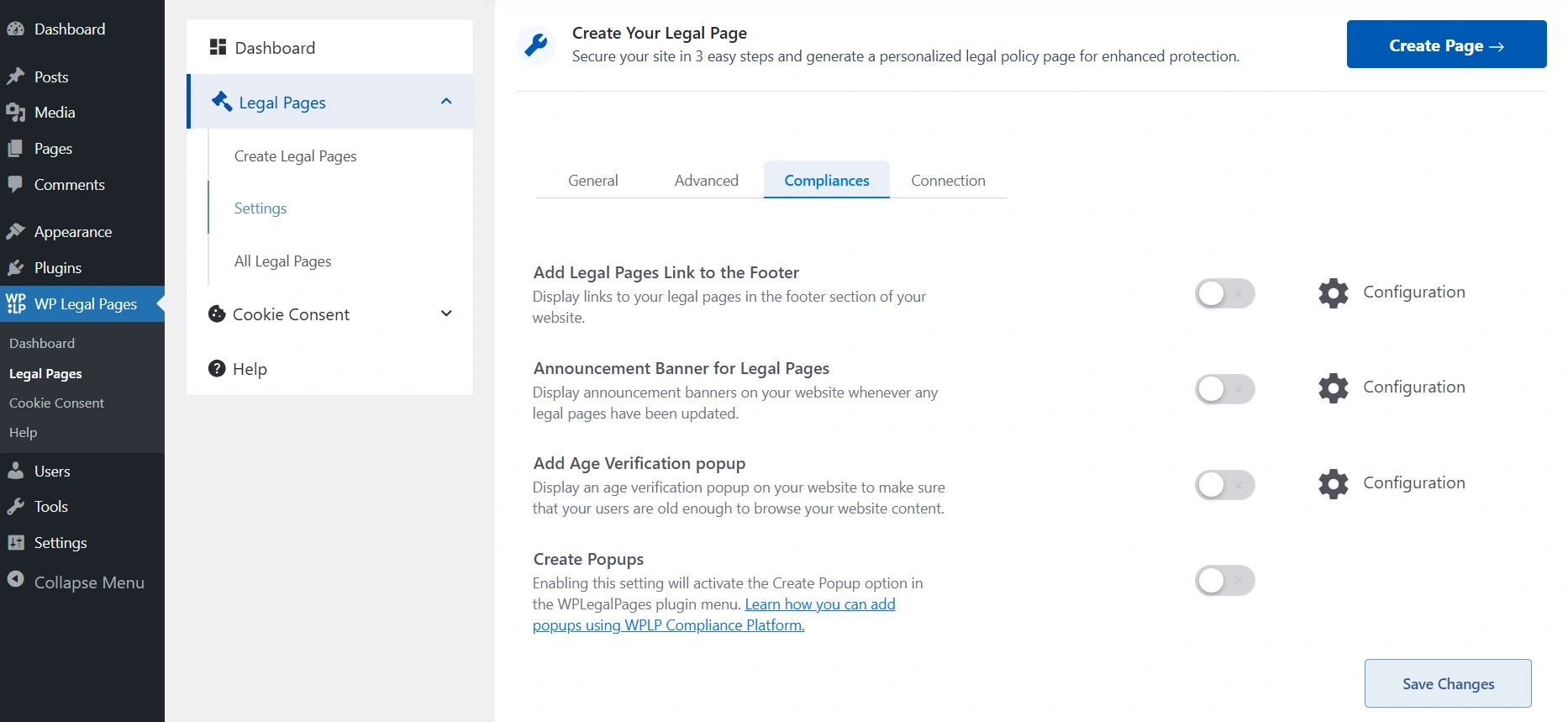
Legal page settings for creating age verification pop-up

Switch on the toggle. And configure the setting. 
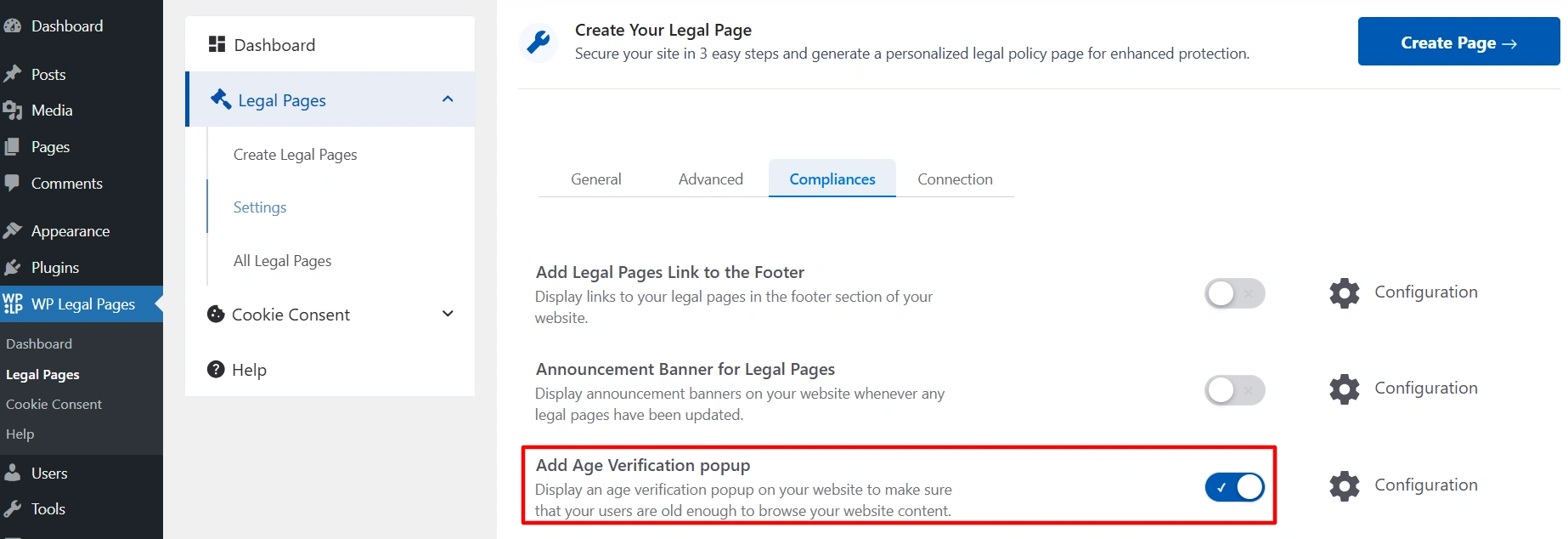
Age verification popup toggle on

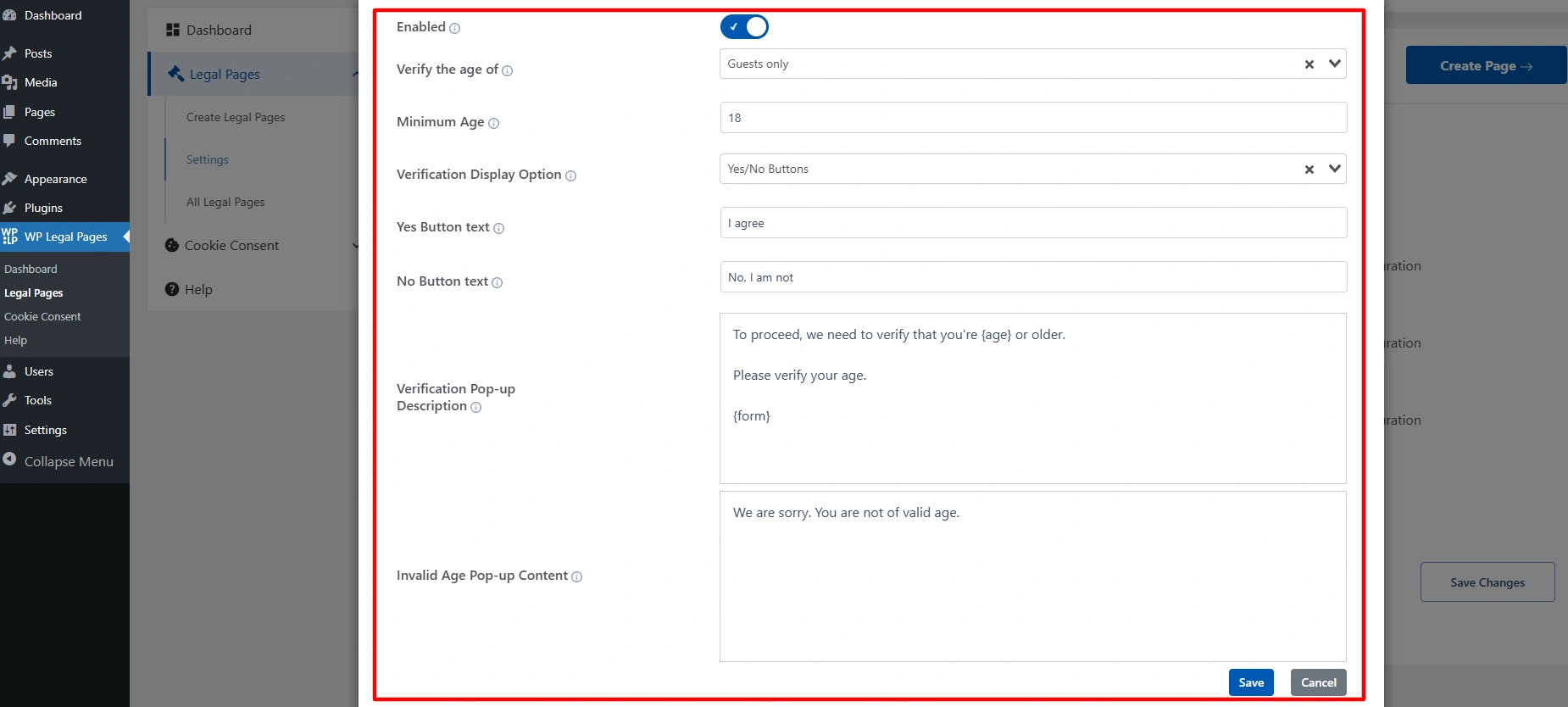
Age Verification Popup Settings #

Age verification pop-up settings
  • Enabled: Toggle this option ON to activate the age verification popup on your website.
  • Verify the age of: Select who needs to go through age verification.
  • Minimum Age: Enter the minimum required age (e.g., 18 or 21). Visitors below this age will be restricted.
  • Verification Display Option: Choose how the popup will appear:
    • Yes/No Buttons: Users simply click I agree or No, I am not.
    • Form: Users may need to enter their date of birth.
    • Yes/Leave Button: Users simply click the yes or leave button.
  • Yes Button Text: Customize the confirmation button text.
  • No Button Text: Customize the decline button text.
  • Verification Pop-up Description: This is the text shown inside the popup.
  • Invalid Age Pop-up Content: The message shown if someone fails verification (chooses No or enters an underage date).
Updated on November 19, 2025

What are your Feelings

  • Happy
  • Normal
  • Sad

Share This Article :

  • Facebook
  • X
  • LinkedIn
  • Pinterest
How to Make an Announcement Banner for Legal PagesHow to add Legal Page in Footer
Table of Contents
  • Age Verification Popup Settings

Our Products

  • Free WP Legal Pages
  • Free WP Cookie Consent
  • Comparison
  • Responsive Theme
  • Responsive Blocks
  • Responsive Addons For Elementor

Company

  • About Us
  • Blog
  • Affiliate Program
  • Refund Policy
  • Privacy Policy
  • GDPR Privacy Policy
  • GDPR Cookie Policy
  • Terms of Use

Support

  • Documentation
  • Bug Bounty Program
  • Changelog
  • Contact Us
IAB CMP Logo
Google Certified CMP Badge
Visa logo
Mastercard logo
Amex digital logo
Apple pay logo
Apple pay logo - 2
Google pay logo
X-twitter Youtube Instagram
Copyright © 2010-2026 HB Digital Inc