
WPLP Compliance Platform logo
Login
Get Started

Overview

3
  • Getting Started
  • Setup & Configuration
  • Platform Overview

Features Walkthrough

3
  •  Cookie Consent
  • Legal pages
  • Dashboard

Guides

17
  • What is the Right to Access?
  • What is the Right to be Forgotten
  • How To Schedule Automatic Cookie Scan
  • A/B Testing Feature
  • Implementing Google Consent V2 Mode using WPLP Compliance Platform
  • Google Consent Mode Troubleshooting with WPLP Compliance Platform
  • How to Verify if Google Consent Mode is Properly Implemented
  • Right to Data Portability Explained – What It Means & How to Comply
  • How to use Script Blocker
  • Respect Do Not Track & Global Privacy Control
  • How to show Third-Party Policy Data on Your Website
  • How to Enable DSAR
  • How to create an Affiliate Disclosure Page
  • How to show the WPLP Block in Gutenberg.
  • How to Make an Announcement Banner for Legal Pages
  • How to Show Age Verification Pop-up on The Website
  • How to add Legal Page in Footer

Troubleshooting & Support

1
  • Common Issues & Solutions
View Categories
  • Home
  • Docs
  • WPLP Documentation
  • Guides
  • How To Schedule Automatic Cookie Scan

How To Schedule Automatic Cookie Scan

Schedule Cookies Scan feature lets you set up automatic scans on your website to check for cookies at a specific date and time in the future.

This functionality is highly beneficial for ensuring that your website consistently stays updated with the latest cookie information.

Steps to Follow to Schedule Cookie Scan: #

  • Access the WP Legal Pages > Dashboard, where you’ll find a summary of the scanner’s details, including the last scan, pages scanned, and the next scan. Click on the Schedule option to proceed. 
Cookie consent insights
  • You’ll be directed to the Cookie Consent > Cookie Manager tab. Then navigate to the Discover Cookies section, and click on Schedule Scan.
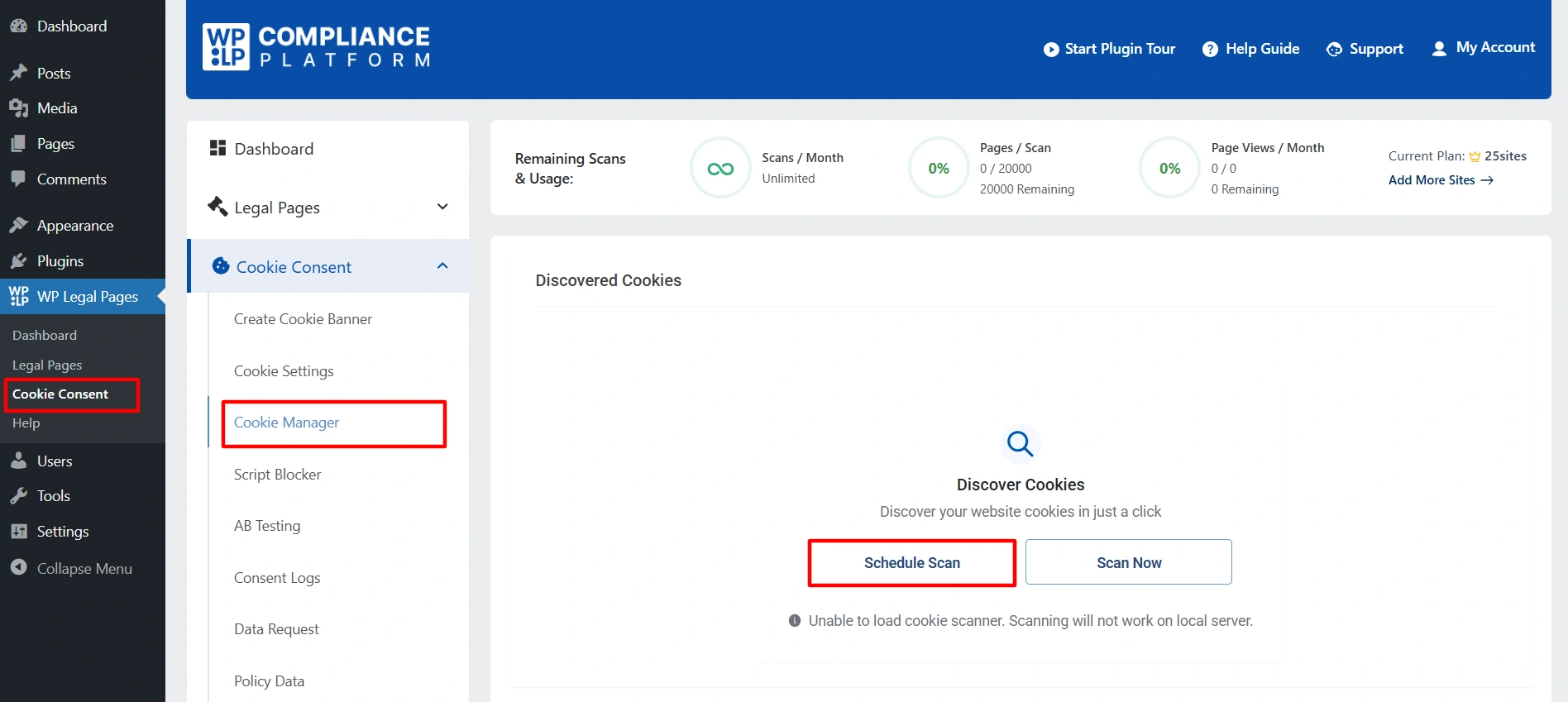
Discover Cookies
  • Under Scan Frequency you can choose the frequency of the scans which includes:
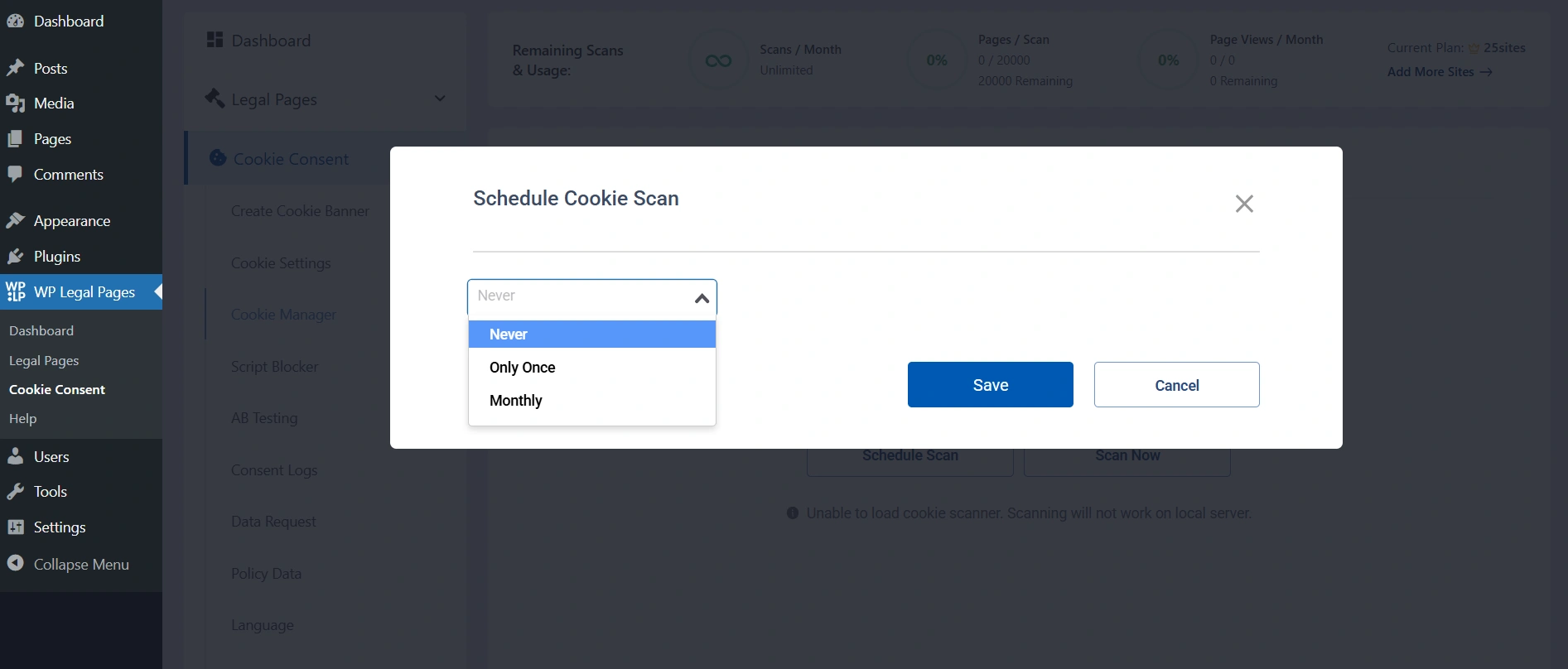
Schedule Cookie Scan
  • Never: Choosing the Never option means that no cookie scanning will take place.
  • Only Once: If the Only Once option is selected, users can set the exact date and time for the scan. 
  • Monthly: If Monthly is chosen, they can set a specific date and time, and the scan will repeat every month at that same time.
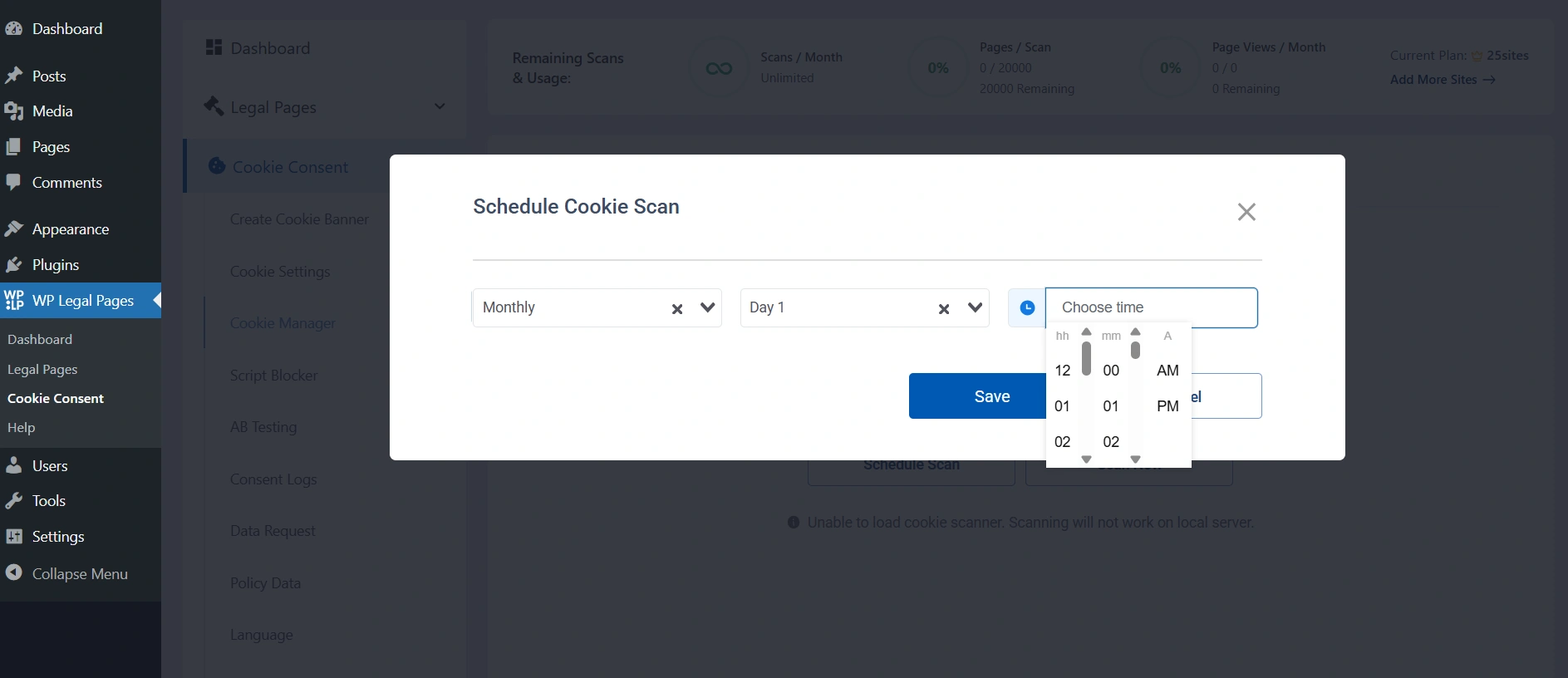
Cookie Schedule Settings
  • Click Save to confirm your choices, and you’re all set.

Updated on November 21, 2025

What are your Feelings

  • Happy
  • Normal
  • Sad

Share This Article :

  • Facebook
  • X
  • LinkedIn
  • Pinterest
What is the Right to be ForgottenA/B Testing Feature
Table of Contents
  • Steps to Follow to Schedule Cookie Scan:

Our Products

  • Free WP Legal Pages
  • Free WP Cookie Consent
  • Comparison
  • Responsive Theme
  • Responsive Blocks
  • Responsive Addons For Elementor

Company

  • About Us
  • Blog
  • Affiliate Program
  • Refund Policy
  • Privacy Policy
  • GDPR Privacy Policy
  • GDPR Cookie Policy
  • Terms of Use

Support

  • Documentation
  • Bug Bounty Program
  • Changelog
  • Contact Us
IAB CMP Logo
Google Certified CMP Badge
Visa logo
Mastercard logo
Amex digital logo
Apple pay logo
Apple pay logo - 2
Google pay logo
X-twitter Youtube Instagram
Copyright © 2010-2026 HB Digital Inc