WPLP Compliance Platform logo
Login
Get Started

Overview

3
  • Getting Started
  • Setup & Configuration
  • Platform Overview

Features Walkthrough

3
  •  Cookie Consent
  • Legal pages
  • Dashboard

Guides

17
  • What is the Right to Access?
  • What is the Right to be Forgotten
  • How To Schedule Automatic Cookie Scan
  • A/B Testing Feature
  • Implementing Google Consent V2 Mode using WPLP Compliance Platform
  • Google Consent Mode Troubleshooting with WPLP Compliance Platform
  • How to Verify if Google Consent Mode is Properly Implemented
  • Right to Data Portability Explained – What It Means & How to Comply
  • How to use Script Blocker
  • Respect Do Not Track & Global Privacy Control
  • How to show Third-Party Policy Data on Your Website
  • How to Enable DSAR
  • How to create an Affiliate Disclosure Page
  • How to show the WPLP Block in Gutenberg.
  • How to Make an Announcement Banner for Legal Pages
  • How to Show Age Verification Pop-up on The Website
  • How to add Legal Page in Footer

Troubleshooting & Support

1
  • Common Issues & Solutions
View Categories
  • Home
  • Docs
  • WPLP Documentation
  • Guides
  • How to Make an Announcement Banner for Legal Pages

How to Make an Announcement Banner for Legal Pages

You can see the notification only if you have made any changes to your legal page. 

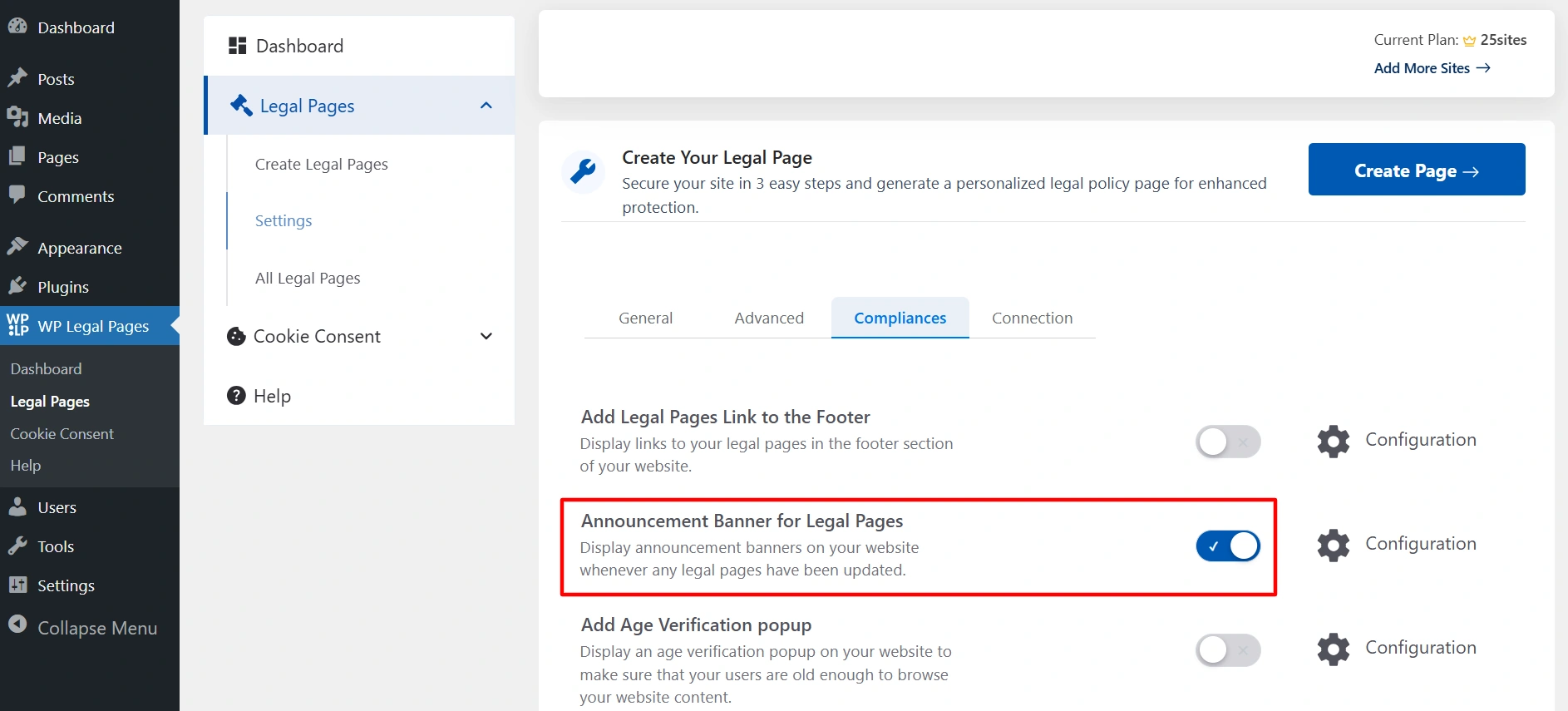
Navigate to your WordPress dashboard, and click on Legal Pages > Settings > Compliance.
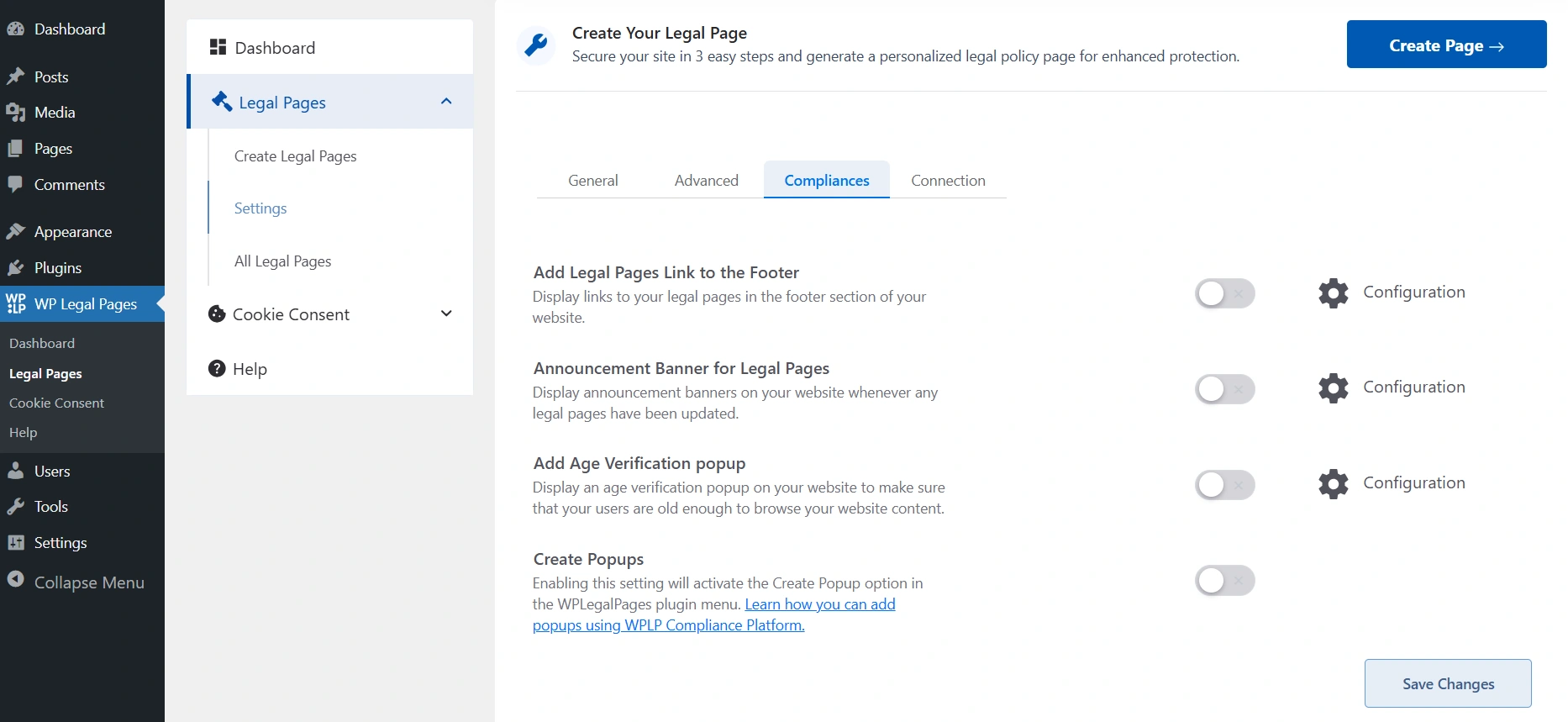
Legal page compliance

Switch on the toggle.

Announcement banner toggle on

Announcement Banner Settings #

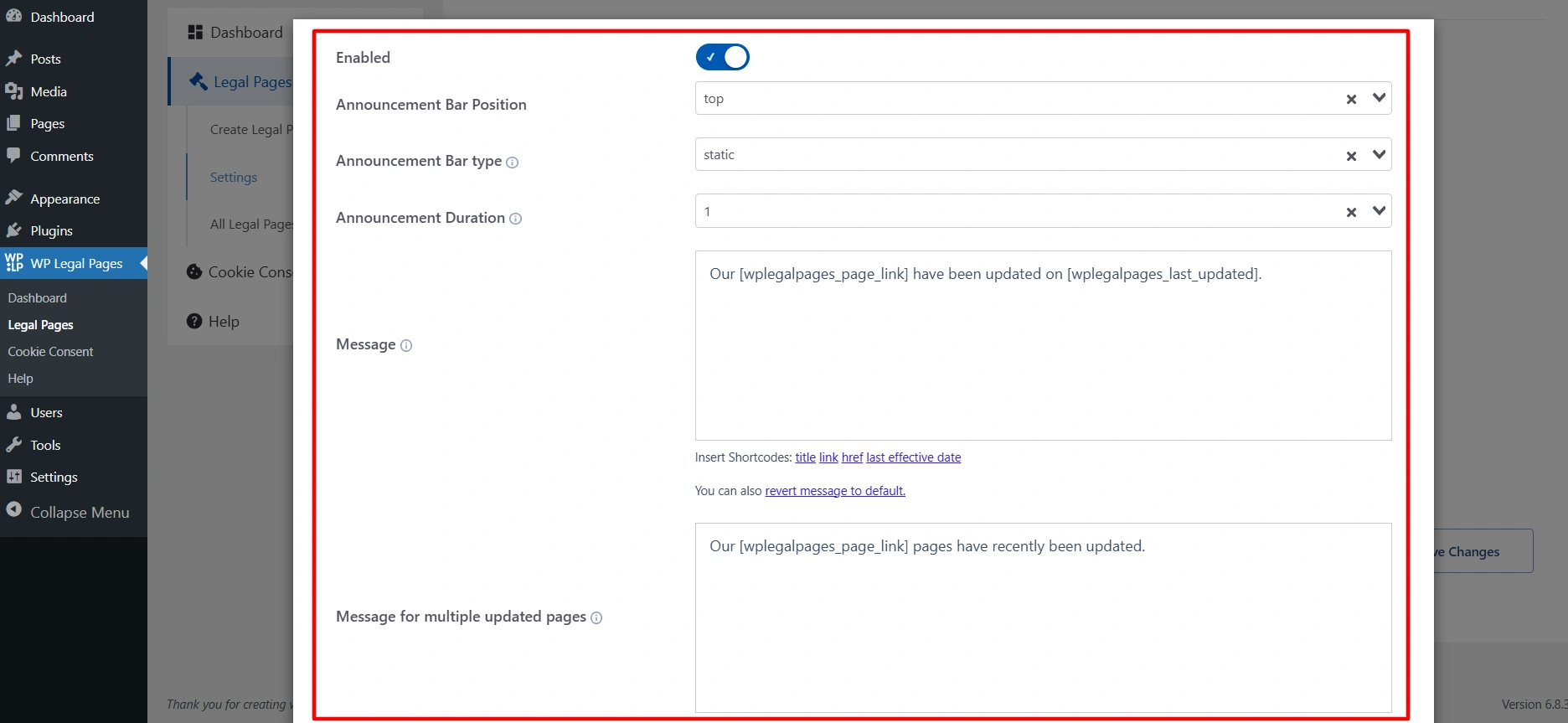
Announcement banner settings
  • Enabled:  Toggle to turn the announcement bar on or off. 
  • Announcement Bar Position: Defines where the bar will appear on the page.
  • Announcement Bar Type: Controls how the banner behaves on scroll. If you select fixed that means it stays visible even after scrolling, and if you choose static, that means when you scroll, it will go away.
  • Announcement Duration: Sets how long (in days) the announcement bar remains visible.
  • Message: The actual text displayed in the banner.
  • Message for multiple updated pages: If several legal pages are updated at once, this message is shown instead of the single-page message.
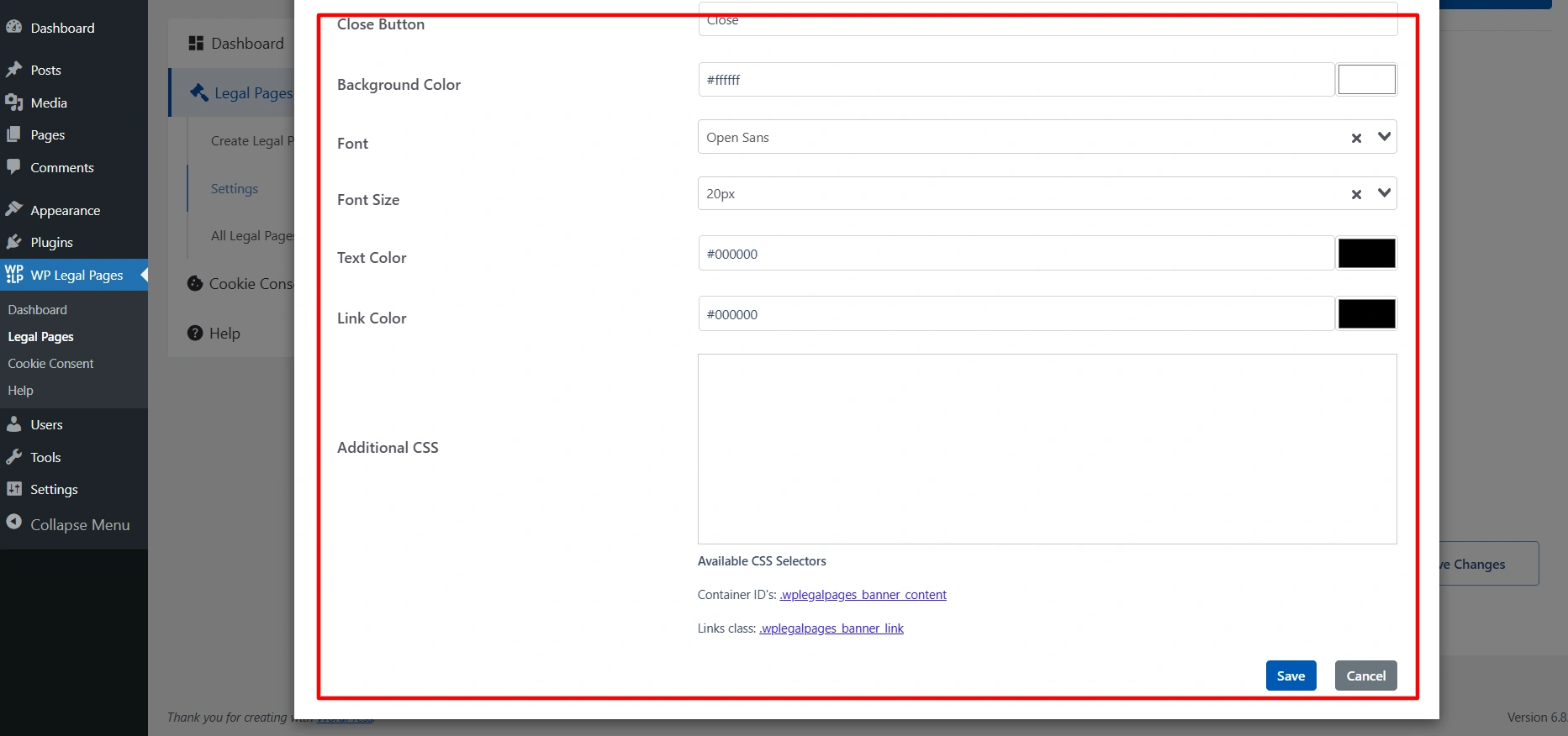
What are announcement banner settings
  • Close Button: Lets you customize the text for the close button (e.g., “Close” or “Dismiss”).
  • Background Color: Choose the background color of the banner.
  • Font: Select the font style for the banner text.
  • Font Size: Sets the size of the announcement text (in px).
  • Text Color: Sets the text color.
  • Link Color: Sets the color for any links inside the announcement text.
  • Additional CSS: Field for custom CSS rules if you want more styling flexibility.

Updated on November 19, 2025

What are your Feelings

  • Happy
  • Normal
  • Sad

Share This Article :

  • Facebook
  • X
  • LinkedIn
  • Pinterest
How to show the WPLP Block in Gutenberg.How to Show Age Verification Pop-up on The Website
Table of Contents
  • Announcement Banner Settings

Our Products

  • Free WP Legal Pages
  • Free WP Cookie Consent
  • Comparison
  • Responsive Theme
  • Responsive Blocks
  • Responsive Addons For Elementor

Company

  • About Us
  • Blog
  • Affiliate Program
  • Refund Policy
  • Privacy Policy
  • GDPR Privacy Policy
  • GDPR Cookie Policy
  • Terms of Use

Support

  • Documentation
  • Bug Bounty Program
  • Changelog
  • Contact Us
IAB CMP Logo
Google Certified CMP Badge
Visa logo
Mastercard logo
Amex digital logo
Apple pay logo
Apple pay logo - 2
Google pay logo
X-twitter Youtube Instagram
Copyright © 2010-2026 HB Digital Inc